Contents
- 1. Introduction
- 2. Data
- 3. Source Code
- 4. Features
- 5. Platforms
Introduction
This is a simple application using OmegaLib to give user experience of navigating in a virtual environment of the earth and viewing the hypocenter of earthquakes (magnitude larger than 6.0) since Jan. 2000. This application can run on laptop/desktop or other VR devices like CAVE or Rift. The user's eye is set as the view point. User can move around by pressing 'W' (forward), 'S' (backward), 'A' (left-side), 'D' (right-side), 'R' (up), 'F' (down) and turn around by draging the mouse. User can also rotate the earth by pressing 'T' (counter-clockwise) or 'Y' (clockwise).
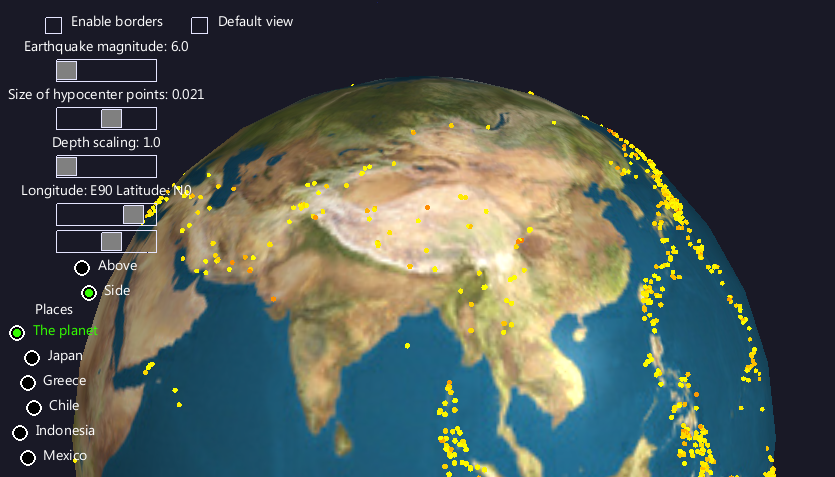
The overview of the hypocenters
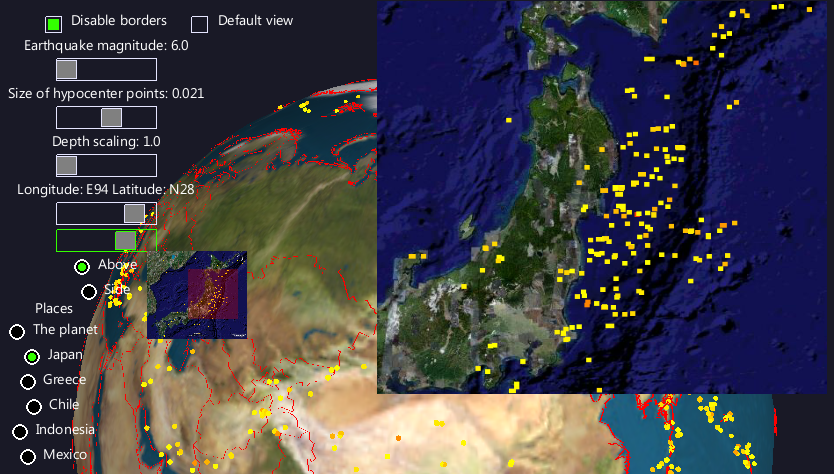
The hypocenters of Japan
There are some buttons and sliders on the left of the window for user to sort the hypocenter information:
- 1. The border button: user can switch the country borders on/off by pressing this button. The borders are shown in red lines.
- 2. The earthquake magnitude slider: user set a cutoff to show the earthquake whose magnitude is larger than this threshold. The default cutoff, which is also the minimum, is 6.0 and the maximum is 8.7. The color to represent the magnitude: from 6.0 (R:255 G:255 B:0) to 9.0 (R:255 G:0 B:0).
- 3. The hypocenter size slider: user can change the size of the spheres or squares to represent the earthquake by dragging the slider button.
- 4. The depth scaling slider: user can set a scaling cutoff to show earthquake whose depth is more than 20 kilometers on/off when the earth is more/less than that scale (The starting scale of the earth is 1. The maximum is 1.9).
- 5. The latitude and longitude sliders: user can view a particular area of the earth by set the longitude and latitude of that spot. There are two options for viewing that area from above or side by clicking the corresponding button.
- 6. The default view: user can return tot he default view by clicking this button.
- 7. The particular places with more details: user can see 5 places with more frequent earthquake in details: Japan, Greece, Chile, Indonesia, and Mexico. By clicking the corresponding button, there are two maps poping out. The smaller one has one red semi-transparent plane which can be dragged by the user to locate the place of interest which is simultaneous shown in the larger map.
Data
- 1. The earth model used in this application is from 3D Warehouse.
- 2. The maps of countries used in the application are from Google Earth.
- 3. The earthquake information is from USGS.
- 4. The country border information is from Thematicmapping.
- 5. The python package to process shape file is from pyshp.
Source Code
To run the application, you need to install OmegaLib first. Please build the OmegaLib following the tutorial according to the OS you use. Then unzip the source code you will see the python script earth.py. Run orun -s your-path-to/earth.py in command line and enjoy the VR navigation.
Features
One interseting thing I found for this application is that it is very cool to make similar tools for high school education. While viewing the spatial distribution of the earthquake on the planet, it is so easy to be convinced that there exists strong relationship between earthquake and the plate boundaries. But this would be way more difficult to be realized when data is only seen in text. In addition, the different ways to sort the visualized data (magnitude and depth) can provide more insight on particular problems like if the earthquake with higher magnitude occurs more frequently on the joints between more plates or if there is any overlap between the magnitude and depth so on so forth. These inspiration for students is the point why we have VR to visualize scientific data.
Platforms
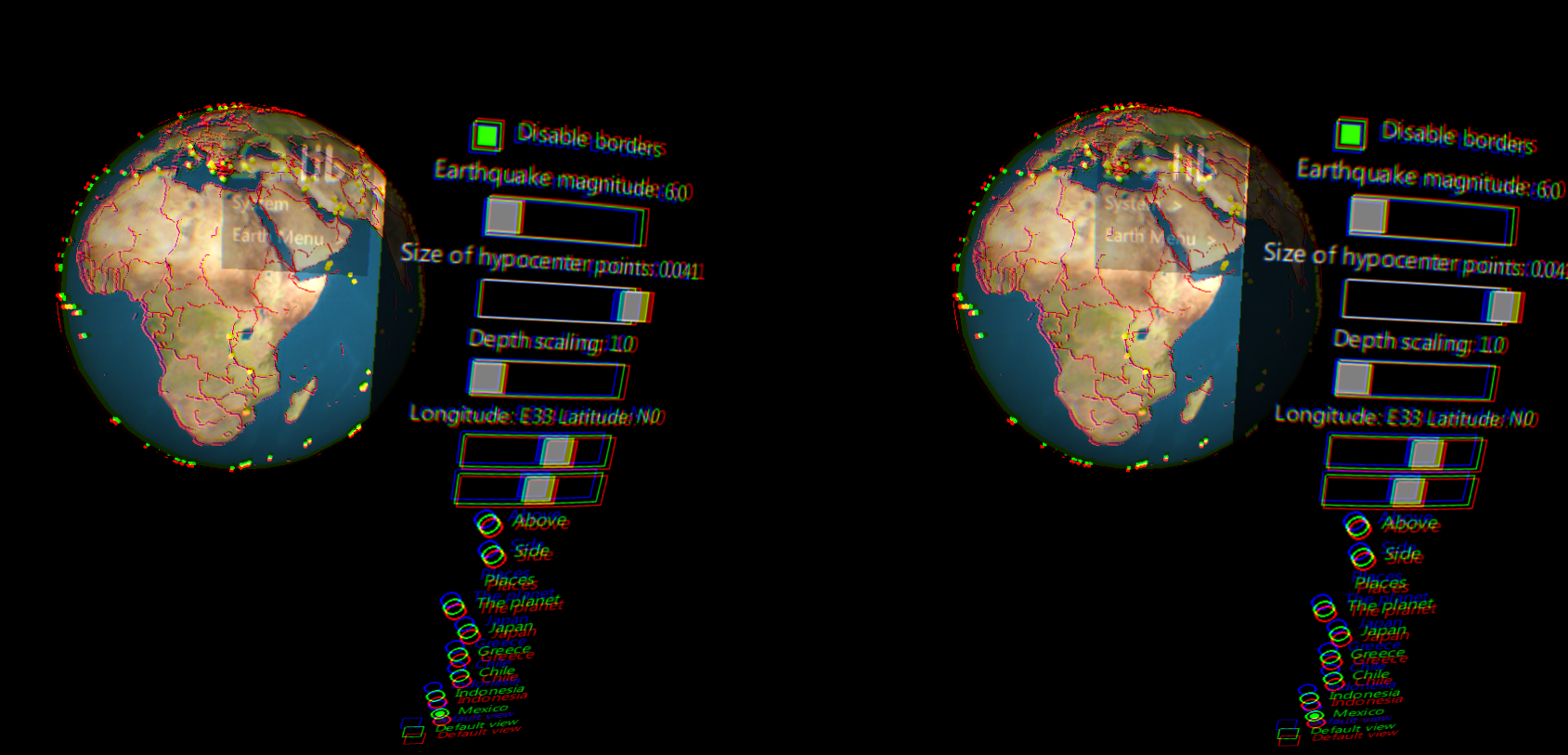
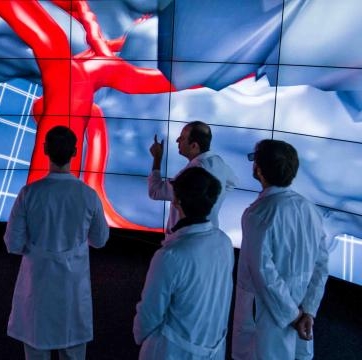
The application can also run on other platforms like Oculus Rift or CAVE2. On both Rift and CAVE2, the script earthcave.py should be used instead of earth.py in command line. On both of them press button '5' or '7' to rotate the earth. The differenece between these two platforms is the controller button: On rift it is the button 'A' or 'X' to open and select the menu while on CAVE2 it is button '2' or '3' to open the menu. CAVE2 is more approprate to run this application for its large size and more flexible ways to change the point of view. Or even more simple, it has a much bigger screen which resembles the size of the real universe. So user can have a way more realistic feeling like real space-voyage while walking inside CAVE2.
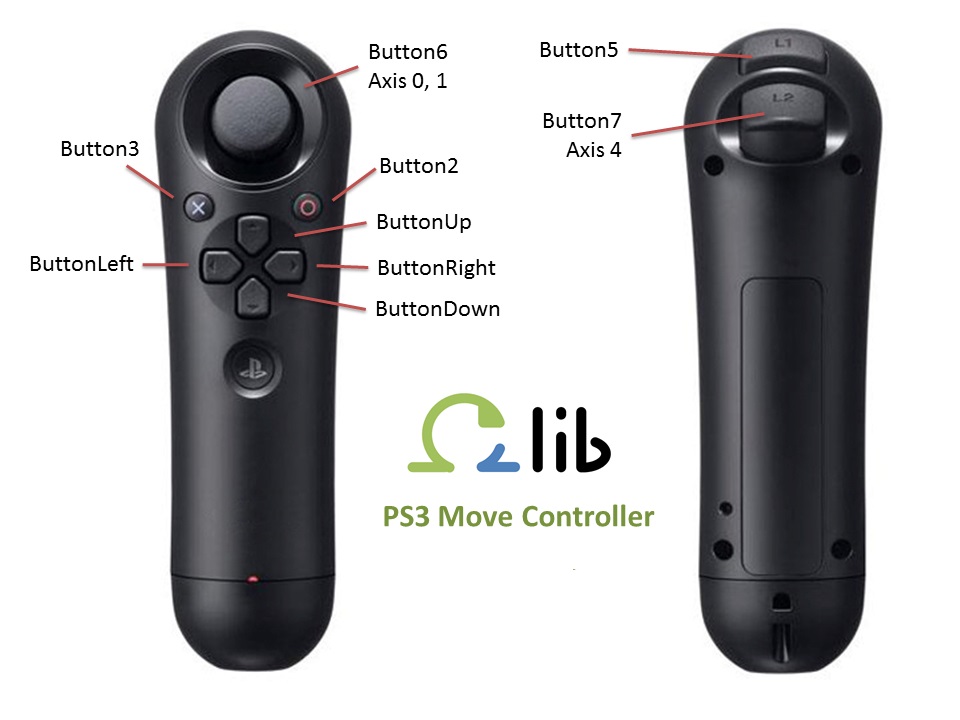
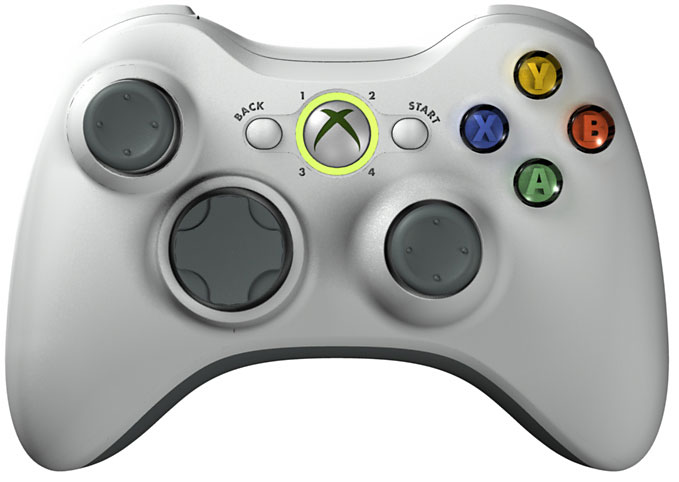
CAVE2 and Rift Controllers